Subroutines & triggers · 3 min read
Use Scheduler
Browse events, routine fires, queued work and return times.
Choose a view
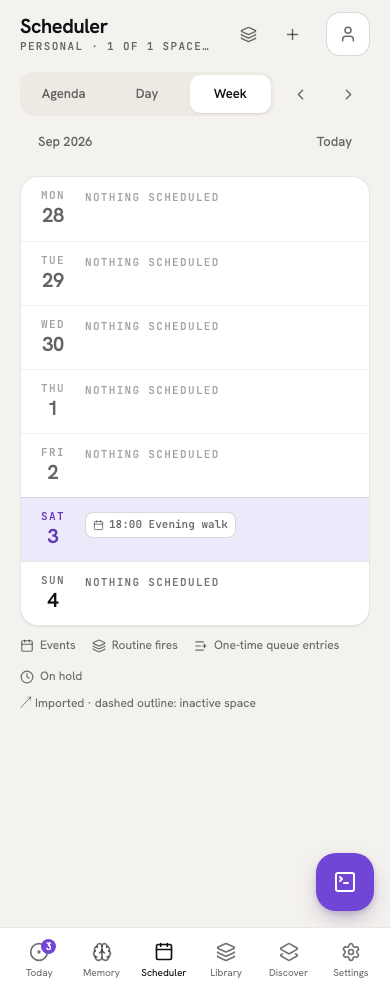
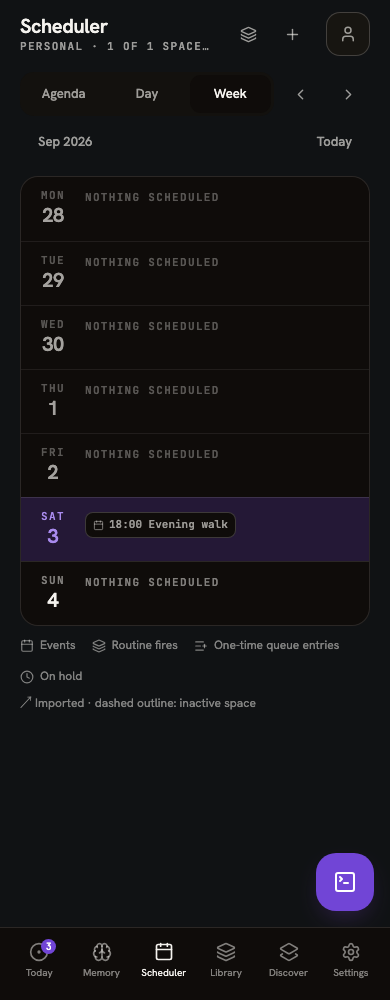
Open Scheduler in the navigation. Agenda lists scheduled items by date. On a phone, Week shows seven day summaries: up to three item chips and a count of the remaining items. Tap a day to open Day.
Day’s seven-day strip switches dates. The time grid includes all-day entries and all 24 hours, including early and late events. Overlapping events appear alongside one another. Use the arrows to move beyond the current week, or Today to return to the current date.
Choose what is visible
Open Layers to include Events, Routine fires, One-time queue entries or On hold return times. Include inactive spaces shows their entries with muted or dashed styling. Viewing an inactive entry does not activate the space.
In Personal, Scheduler can include accessible shared spaces. A selected household limits the view to that space. Times use the device timezone; changing the view does not rewrite an event’s schedule.
Open or create an event
Select an event to inspect its time, space, agenda and available actions. Imported events retain their source link. Routine fires and queued entries open their trigger controls when available.
Choose New event, or use Schedule from Capture, to create an event. Inactive-space details offer Activate space or Switch to space before starting work there.