Getting started · 3 min read
Use Capture
Save a memory item, log activity, run a routine, or schedule an event.
Open Capture
On a phone, tap the floating Capture button above the navigation. On desktop, choose Capture in the sidebar. You can also press Command+K on Mac, Control+K elsewhere, or / when you are not typing in a field.
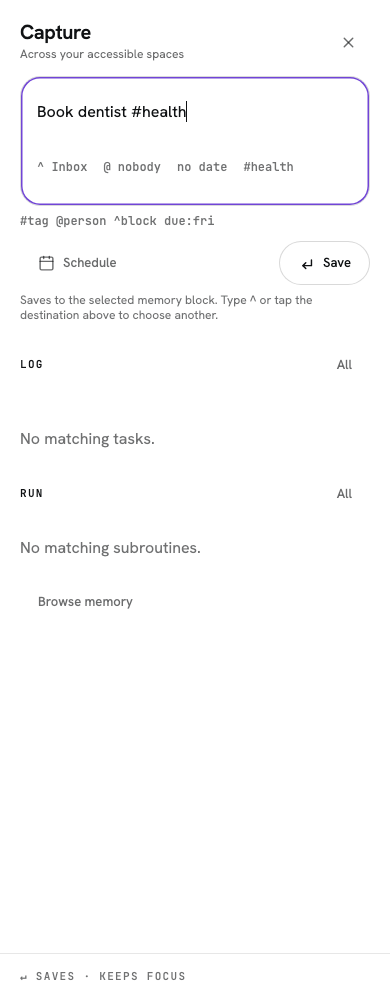
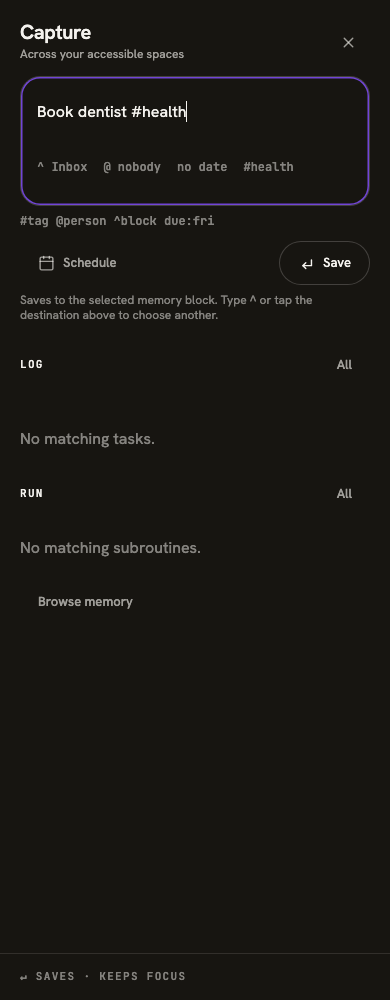
Save something to Memory
Type your item and check the destination chip before choosing Save. The destination sets its space. You can choose another memory block or create one without discarding the text.
Use #tag, @person, due:fri, or ^list to add details. An owner is a label; it does not notify or assign a new task to someone. If a name is ambiguous, resolve it before saving.
After a save, Undo is offered while that change can still be safely reversed. It preserves recorded history.
Find and log activity
Capture home shows up to four Log tiles and three Run shortcuts. Typing filters those choices while keeping the text available to save to Memory. Clear capture text empties the draft and returns focus to the field; it does not undo anything already saved.
Choose All beside Log to search every eligible task in active spaces. Running timers appear first, followed by Most used and Everything in alphabetical order. Most used is based on recorded activity, so a new task may appear only under Everything. Show more tasks reveals the next set of matches.
Tap a Log tile to record activity. Tasks with fields open a form; a running timer opens its stop controls. Check the subject and space shown on the tile before logging.
Run now or add to the queue
Choose a Run shortcut to review Run now, Add to queue, or Schedule for later. The choice screen explains what happens to current work. Capture home also names the work running in your current Today view.
Choose All beside Run to search your subroutines. Each row has a separate Queue button: it adds the routine without starting it and keeps your search open. Use Undo queue in the receipt to reverse that addition while it is still safe to do so. Already queued or running means no new queue entry was added.
Run now can pause current work and return to it when the new routine finishes. Queue leaves current work running. Schedule for later chooses when a routine joins Today; it does not create a calendar event.
Schedule an event
Choose Schedule from Capture home to open the event editor. You can type a title first or enter one in the editor. Check the space, date and time, then choose Create event. A title is required, and the saved event appears in Scheduler.
Cancel returns to your original Capture draft without creating an event. Changes made only in the unfinished event editor are discarded. Use the clear button if you want to start a new Capture draft.